
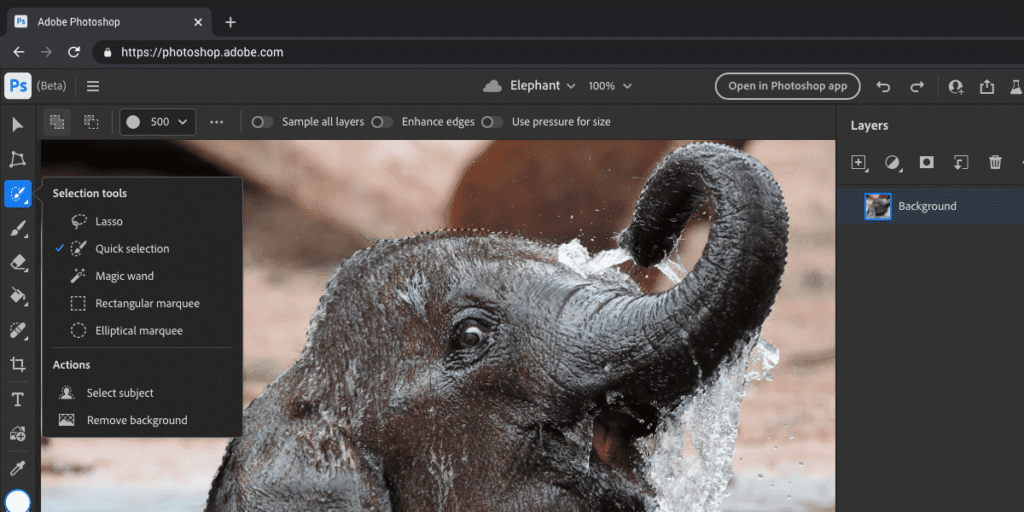
Adobe’s creative tools are everywhere — from social media graphics and brand logos to films, ads, and YouTube videos. But owning Photoshop, Illustrator, and Premiere Pro doesn’t automatically make someone a professional. What separates beginners from pros is not just knowing the tools, but knowing how and when to use them together.
This guide breaks down how professionals approach each application and how you can develop a smarter, faster, and more confident workflow.
Understanding the Role of Each Tool
One of the biggest mistakes beginners make is trying to force one program to do everything. Professionals don’t do that. They use each tool for what it does best.
Photoshop is for photo editing and raster-based design. Illustrator is for vector graphics that need to scale perfectly. Premiere Pro is for video editing and storytelling through motion. Once you stop overlapping their purposes, your workflow instantly becomes cleaner and more efficient.
Using Photoshop Like a Professional
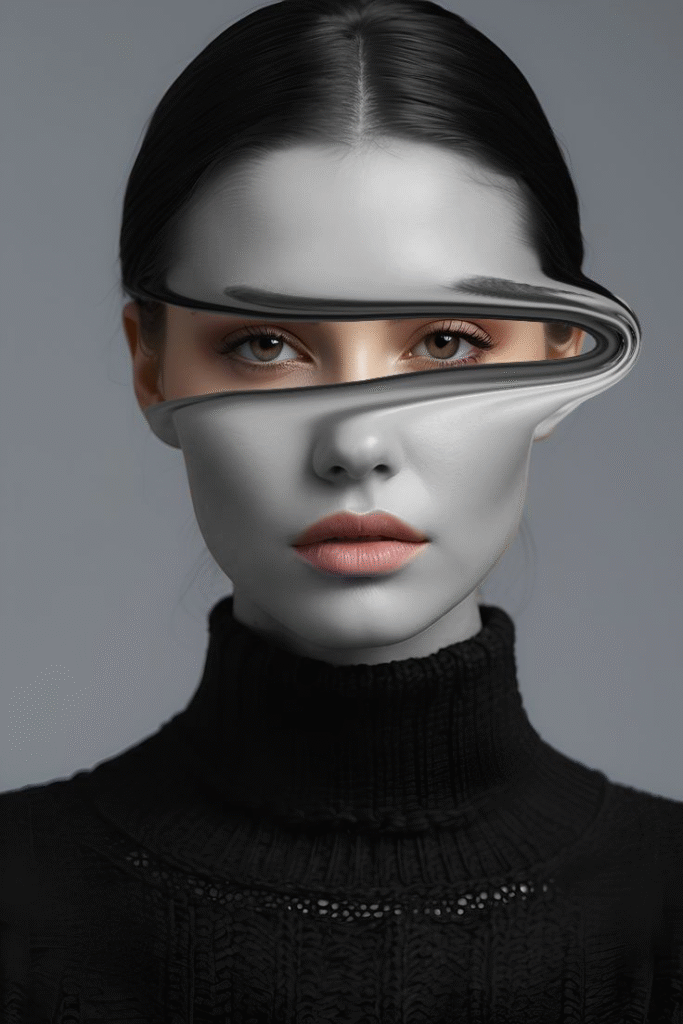
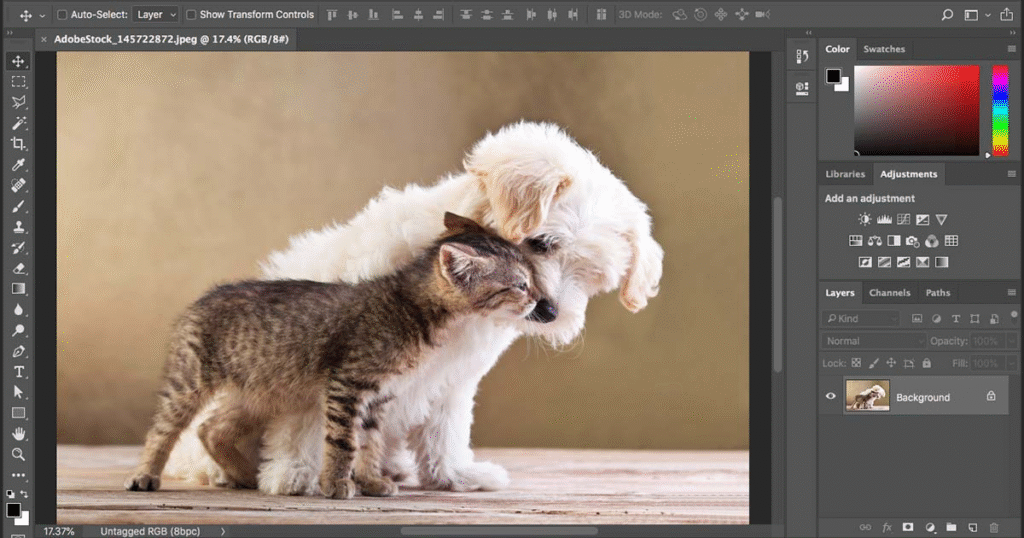
Professionals treat Photoshop as a non-destructive editing environment. Instead of editing images directly, they rely on layers, masks, smart objects, and adjustment layers.
Layer masks allow precise control without permanently deleting anything. Smart objects let you resize and reuse assets without losing quality. Adjustment layers keep color grading flexible and reversible. These habits not only protect your work but also make revisions painless.
Another pro habit is consistency. Using actions, presets, and organized layer naming keeps projects manageable, especially when working on large or long-term designs.
Using Illustrator Like a Professional
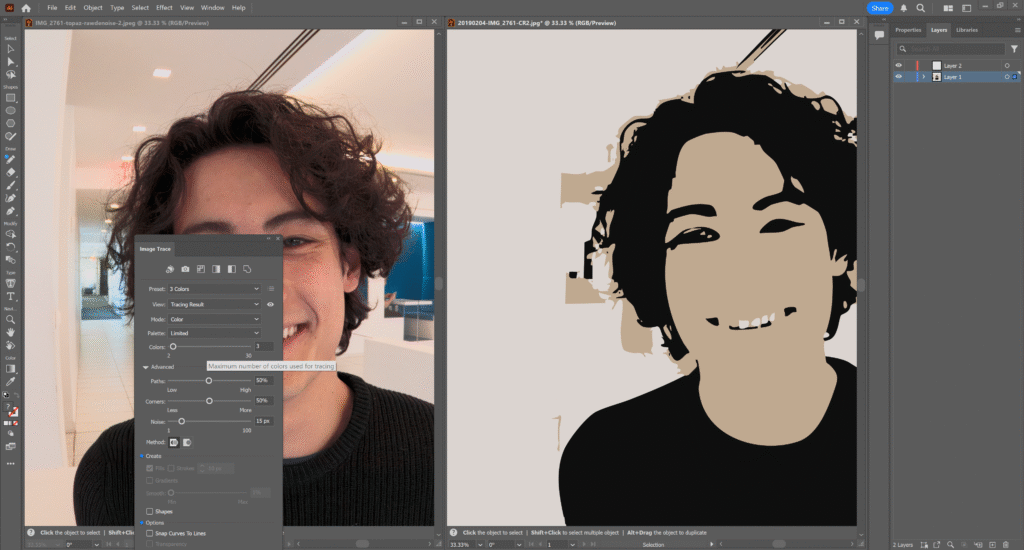
Illustrator is where clean, scalable design happens. Professionals rely on vectors for logos, icons, illustrations, and typography that must look perfect at any size.
The Pen Tool is the foundation of pro-level Illustrator work. Mastering anchor points and curves allows complete creative control. Shape Builder and Pathfinder tools help create complex designs efficiently, without unnecessary layers.
Pros also pay attention to structure. Organized layers, grouped elements, and consistent color swatches make designs easier to edit and hand off to clients or teams.
Using Premiere Pro Like a Professional
Professional video editing is less about flashy effects and more about storytelling. Premiere Pro excels when editors focus on pacing, rhythm, and clarity.
Pros organize footage before editing. Bins are labeled, timelines are clean, and sequences are built intentionally. Keyboard shortcuts replace menu clicks, speeding up the entire process.
Color correction is done with restraint. Audio is treated as equally important as visuals. Titles are readable, simple, and purposeful. These small decisions are what separate professional edits from amateur ones.
Creating a Professional Cross-App Workflow
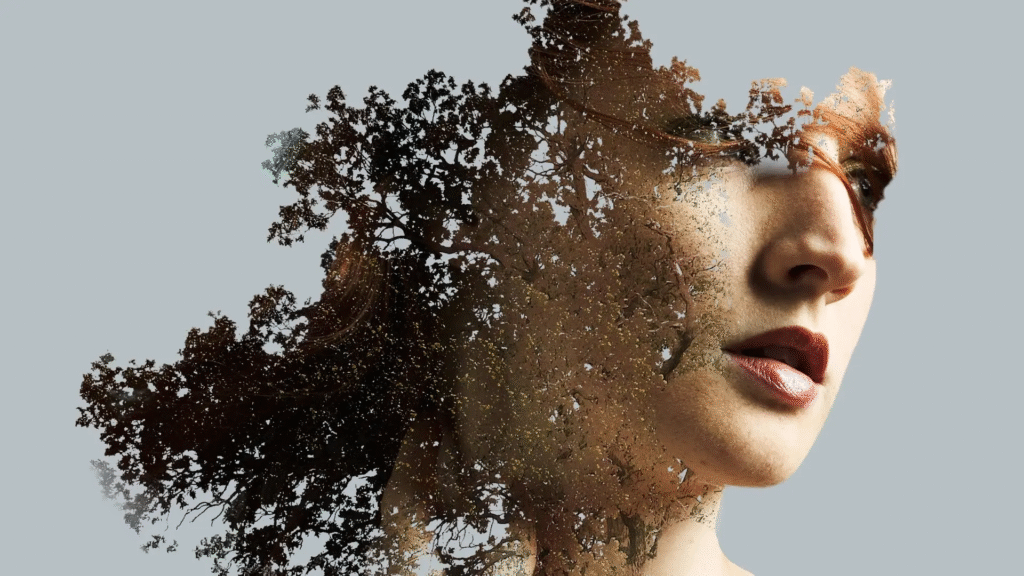
Where professionals truly stand out is how they combine these tools.
Graphics are designed in Illustrator, refined in Photoshop, and animated or edited in Premiere Pro. Instead of exporting final assets too early, pros use smart importing, linked files, and consistent resolution settings.
This connected workflow saves time, reduces quality loss, and makes last-minute changes manageable. It also allows creativity to flow instead of being interrupted by technical limitations.
Developing a Professional Mindset
Tools don’t make someone a professional — habits do. Professionals plan before creating. They organize files. They back up work. They understand deadlines and revisions are part of the process.
Most importantly, pros keep learning. Adobe updates its software constantly, and staying current is part of staying competitive. Tutorials, practice projects, and real-world challenges all contribute to growth.
Microsoft Windows 11: Features, System Requirements, and Everything You Need to Know
Microsoft Windows 11 represents a major shift in how Windows looks, feels, and works. Rather…
iPhone 18 Pro Max Expected Features (Price, Launch, Camera & More) You Need to Know
Apple’s Pro Max lineup has always represented the very best the company has to offer,…
iPhone Air 2 Rumors: What We Know So Far
Apple fans are no strangers to leaks, speculation, and long stretches of waiting, and the…
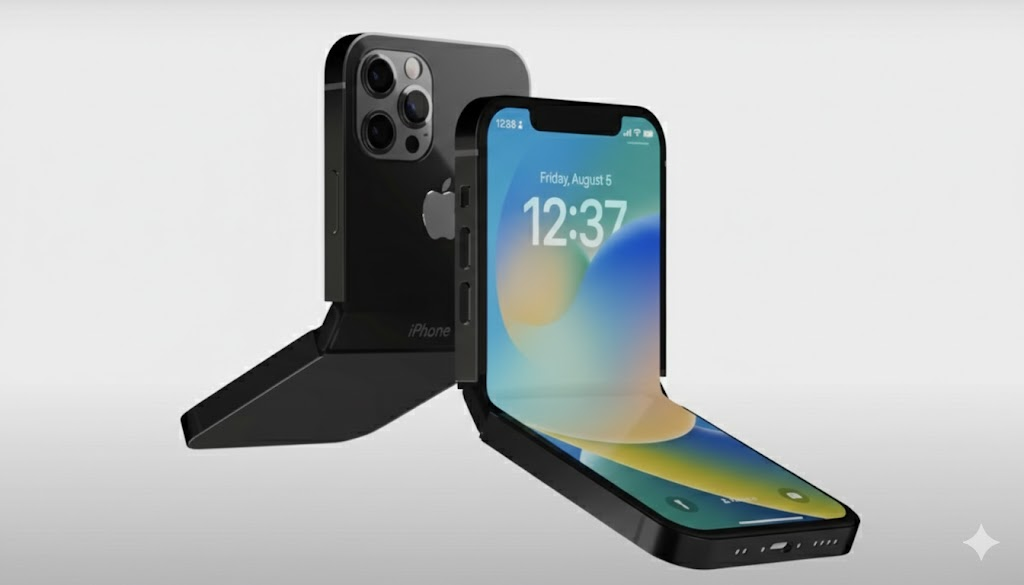
Is Apple Launching a Foldable iPhone in 2026? Complete Rumor Breakdown
The smartphone industry has been buzzing with speculation about Apple finally joining the foldable phone…
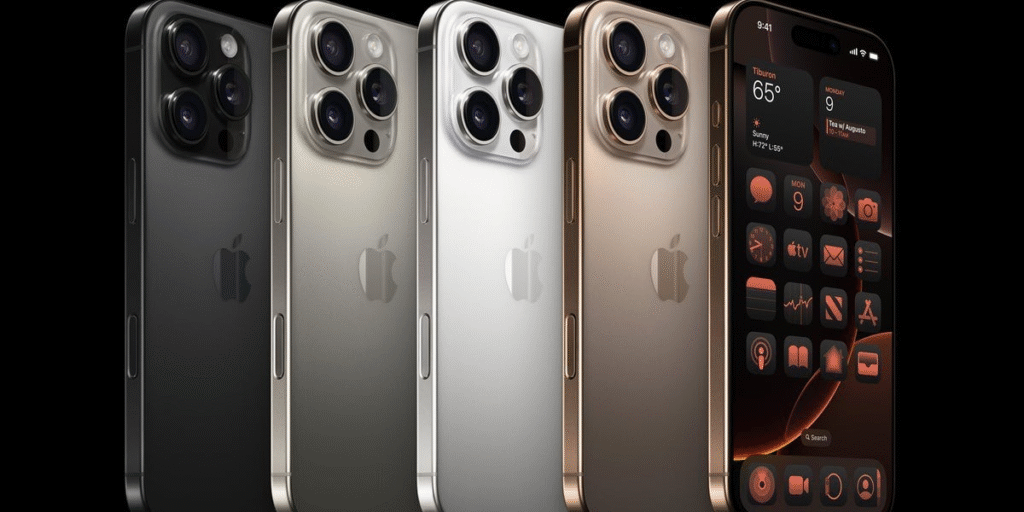
Latest iPhone Leaks and Rumors: What’s Coming in 2026
Every year, Apple enthusiasts eagerly await news about the next iPhone. As 2026 approaches, rumors…
Adobe Animate Software Explained: Everything You Need to Know
Adobe Animate is a popular animation and multimedia design tool used by artists, designers, educators,…
Final Thoughts
Learning Photoshop, Illustrator, and Premiere Pro like a professional is less about memorizing features and more about developing smart workflows and disciplined habits. When each tool is used for its true purpose and combined thoughtfully, creative work becomes faster, cleaner, and more impactful.
Master the fundamentals, respect the process, and your skills will naturally move from beginner to professional level.
This article is intended for educational and informational purposes only. Software features and workflows may change with updates from Adobe. Individual results may vary depending on experience level and project requirements.
#Photoshop #Illustrator #PremierePro #GraphicDesign #VideoEditing #CreativeWorkflow #AdobeCreativeCloud #DesignTips #Anslation #Carrerbook